
One Bluetooth speaker may be enough for background music, but it can struggle to fill a large room. Place a second speaker nearby and the sound can become wider, louder and more enjoyable—provided the two devices are connected correctly.
The main challenge is that not every pair of Bluetooth speakers can create true stereo sound. Some models play the same audio through both speakers, while compatible systems divide the left and right channels. Understanding this difference prevents wasted time and helps you build a better listening setup.
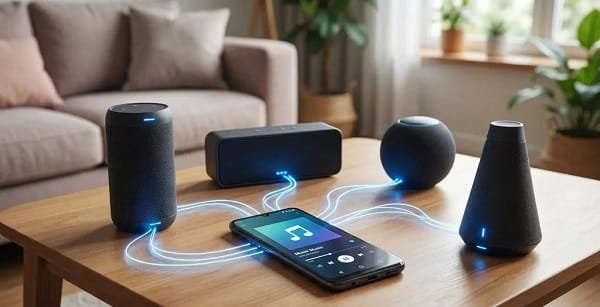
Check Whether the Speakers Support Linking
Begin by reading the product specifications or checking the companion application. Look for terms such as Stereo Pair, True Wireless Stereo, TWS, Party Mode, Speaker Pairing or Multi-Speaker Connection.
True stereo mode assigns one speaker to the left channel and the other to the right. Party mode usually sends the same complete audio signal to every connected speaker. Party mode increases coverage but does not create proper left-right separation.
Many systems require two identical speaker models. Even products from the same brand may not connect when they belong to different generations or use different linking technologies.
Charge and Update Both Speakers
Charge both speakers before starting. Low battery can interrupt pairing or cause one speaker to disconnect during setup.
Install the official companion app when the manufacturer provides one. Connect each speaker separately and check for firmware updates. Both units should ideally run the same software version.
Remove old Bluetooth connections that may interfere. A speaker connected to a tablet, television or another phone may refuse to enter linking mode.
Pair the First Speaker With Your Phone
Switch on the first speaker and place it in Bluetooth pairing mode. Open Bluetooth settings on the smartphone, select the speaker name and wait until the connection is confirmed.
Play a short audio track to make sure it works normally. Stop playback before adding the second speaker.
Keep the phone and both speakers close together during setup. Once the connection is stable, they can be moved into their final positions.
Activate Stereo or TWS Pairing
Turn on the second speaker. Press the linking, TWS, stereo or party button on both devices according to the manufacturer’s method.
Some speakers connect after a single press, while others require holding the button for several seconds. A sound, voice message or indicator light normally confirms that the speakers have linked.
When an app is required, open it and select options such as Create Stereo Pair, Add Speaker or Group Speakers. Assign the left and right channels if the app asks.
Only one speaker may remain directly connected to the phone. It then sends audio to the second unit.
Use the Phone’s Built-In Dual Audio Carefully
Certain smartphones can send Bluetooth audio to two devices at the same time. This feature may be called Dual Audio, Audio Sharing or Media Output.
Although convenient, it does not always create true stereo. Both speakers may play the same sound, and small timing differences can produce an echo.
For proper stereo separation, the speakers’ own linking system is usually more reliable. Phone-based dual output is better for casual listening when perfect synchronisation is not essential.
Position the Speakers for Better Stereo Sound
Place the left and right speakers at a similar height and an equal distance from the main listening position. Separating them by a few feet creates a wider soundstage.
Do not place both units in the same corner. Corners can exaggerate bass and reduce stereo separation. Avoid hiding one speaker behind furniture, curtains or large objects.
For a living room, position the speakers on either side of the television or main seating area. Outdoors, keep them within the manufacturer’s recommended wireless range and away from direct water unless properly rated.
Fix Pairing and Synchronisation Problems
When one speaker fails to connect, switch both units off and remove the main speaker from the phone’s Bluetooth list. Restart everything and begin again.
Confirm that both speakers are using the same pairing mode. One may be in party mode while the other is waiting for a stereo connection.
Wireless interference can also cause dropouts. Move away from crowded routers, disconnect unnecessary Bluetooth devices and keep the speakers within a reasonable distance.
If sound continues to echo, use the manufacturer’s speaker-to-speaker system instead of connecting both units separately through the phone.
Understand the Main Limitations
Different brands generally cannot form a stereo pair because their linking technologies are proprietary. Two speakers may also lose certain features while paired, such as microphone calling, voice assistants or equaliser controls.
Stereo grouping may not work with every input. A speaker pair that works through Bluetooth might not remain linked when using AUX, USB or television audio.
Check these limitations before purchasing a second speaker specifically for stereo use.
FAQs
Q: Can two different Bluetooth speaker brands be paired together?
A: Usually not for true stereo. A phone may send audio to both on selected devices, but synchronisation and left-right separation are not guaranteed.
Q: Is TWS mode the same as stereo mode?
A: TWS often supports stereo pairing, but some brands use the term differently. Check whether the system assigns separate left and right channels.
Q: Why is there an echo between two paired speakers?
A: The speakers may be connected independently rather than through a synchronised linking system. Network interference or incompatible models can also create delay.
Q: Can I pair more than two Bluetooth speakers?
A: Some brands support large party groups, while stereo mode normally uses two speakers. The maximum number depends on the speaker series and companion app.
 Prateema Jain