
You say the wake phrase once, then twice, and finally raise your voice—yet the smart speaker remains silent. At other times, its light turns on as though it heard you, but no answer follows. This becomes frustrating when you rely on voice commands for timers, music, lights, reminders or hands-free calls.
A smart speaker needs power, an active microphone, stable Wi-Fi, a working cloud service and correctly linked accounts. Testing these areas in a sensible order can often restore normal operation quickly.
Check Whether the Microphone Is Muted
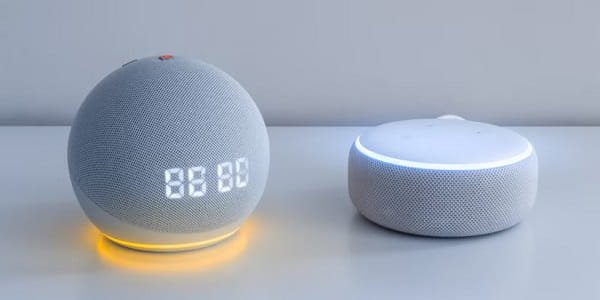
Start with the simplest possibility. Most smart speakers have a physical microphone-mute button or switch. When it is active, the device may show a red, orange or another warning light.
Press the microphone control once and listen for confirmation. Then say the correct wake phrase from a normal distance. Avoid standing beside a loud television, fan or music source because background noise can cover your voice.
Dust may also collect around microphone openings. Disconnect the speaker from power and wipe its exterior with a clean, dry microfiber cloth. Never push pins, liquid or compressed air into the holes.
Confirm That the Wake Phrase Is Recognised
Watch the lights or display while saying “Alexa,” “Hey Google,” “Siri” or the selected wake word. If nothing changes, the device may not be detecting it.
Speak clearly, pause briefly and try a simple request such as asking for the time. Long sentences delivered quickly can be misunderstood.
If the speaker responds to other family members but not you, retrain the voice profile through the companion app. Confirm that the selected language and regional setting match the way commands are normally spoken.
Test the Internet Connection
Most smart-speaker commands are processed online. The device may hear you but fail to answer when Wi-Fi or internet service is unavailable.
Open a website on a phone connected to the same network. If it does not load, restart the router. Keep the speaker within reasonable range and away from thick walls, metal cabinets and crowded wireless equipment.
Check the companion app to see whether the speaker appears online. If other devices work but the speaker remains disconnected, reconnect it to Wi-Fi using the official setup process.
Restart the Speaker and Router
A proper power restart clears temporary errors that standby mode may not remove.
Unplug the speaker, wait around 10 to 30 seconds and reconnect it using the recommended power adapter. Let it start completely before testing another command.
Restart the router when several smart devices are slow or unavailable. Do not factory reset the speaker yet, because that removes Wi-Fi details, room assignments and linked services.
Check the App, Account and Linked Services
Open the Google Home, Alexa or Apple Home app and look for alerts. The app may request account verification, updated permissions or acceptance of new settings.
Confirm that the music, calendar or smart-home service involved is still linked. A speaker may answer questions but fail to control a bulb whose account has been disconnected.
If only one command type fails, control the same accessory through its own app. Update the speaker app, connected accessory and device software when updates are available.
Simplify Confusing Device Names
Voice assistants can struggle when several devices have similar names, such as “bedroom light,” “bed light” and “bedroom lamp.”
Assign short, distinct names and place accessories in the correct rooms. Avoid names that sound like common commands. After renaming a device, refresh or rediscover its service in the assistant app.
Use a Factory Reset Only as the Final Step
A factory reset may help when the speaker cannot complete setup, remains offline after repeated restarts or fails across all commands. Follow instructions for the exact model because reset methods differ.
Make sure you know the account password and Wi-Fi details first. If the speaker does not power on, overheats, restarts continuously or shows no lights with a working socket, arrange authorised support.
FAQs
Q: Why does my smart speaker light up but not answer?
A: It may recognise the wake phrase but lack internet access, experience a temporary service issue or misunderstand the command. Test a basic question and check Wi-Fi.
Q: Why does it respond to others but not me?
A: Your voice profile, language setting or speaking distance may be responsible. Retrain voice recognition and reduce nearby noise.
Q: Can crowded Wi-Fi stop voice commands?
A: Yes. Heavy network traffic or weak signal strength can delay responses. Move the speaker closer to the router and restart the network.
Q: Should I factory reset an unresponsive smart speaker?
A: Only after checking the microphone, power, Wi-Fi, app alerts, linked accounts and software updates.
 Prateema Jain